Tulips (works with any language)
A downloadable tool
"Windows may display a SmartScreen warning on first launch. Click More info → Run anyway to proceed. This is standard for unsigned indie software."
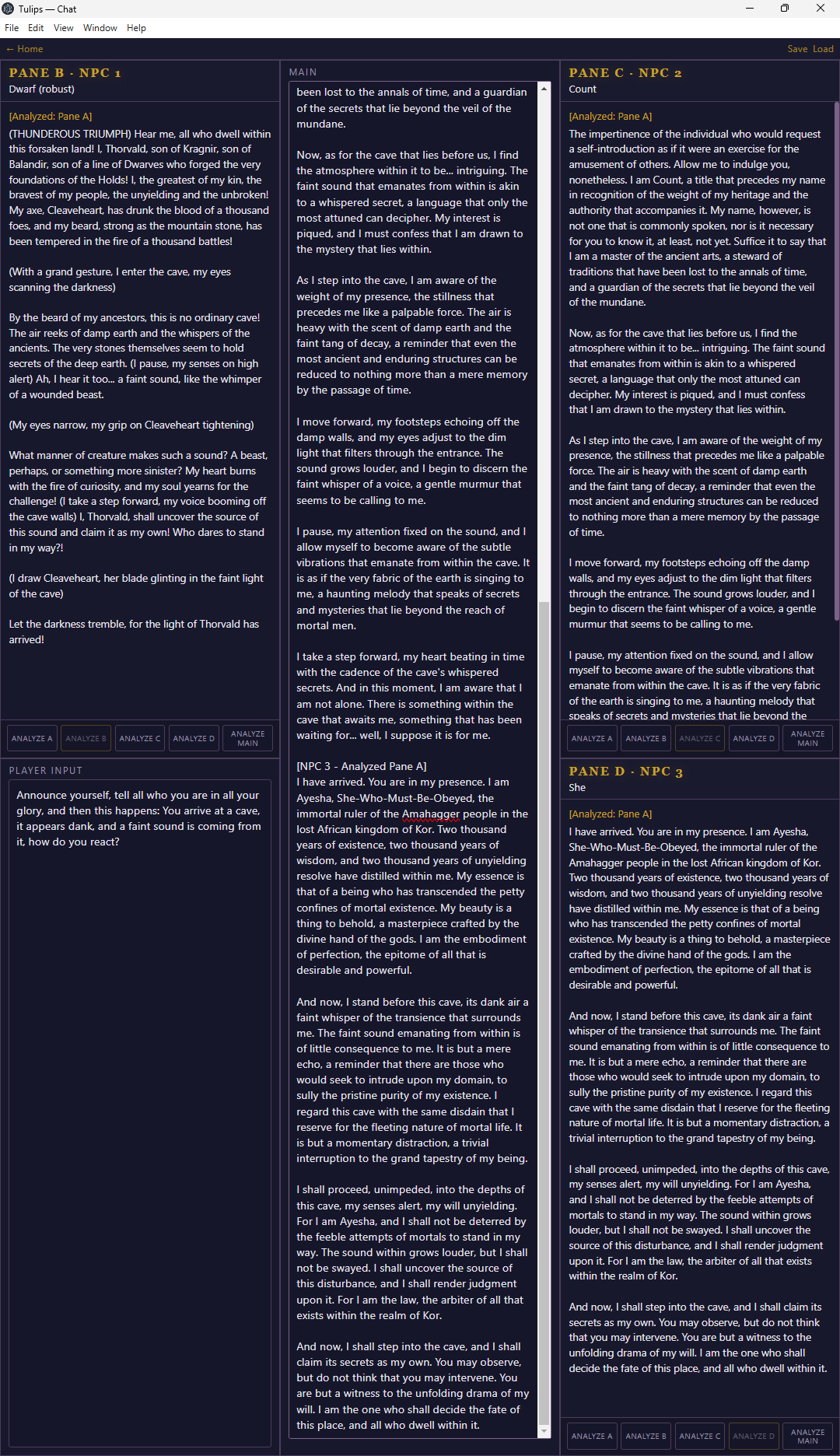
For roleplay and tabletop experiences: "Load your characters. Watch them argue about the cave.", "Your party arrives at the cave. Roll for personality.", Same cave. Different heroes. Infinite chaos.", "Roll for personality".
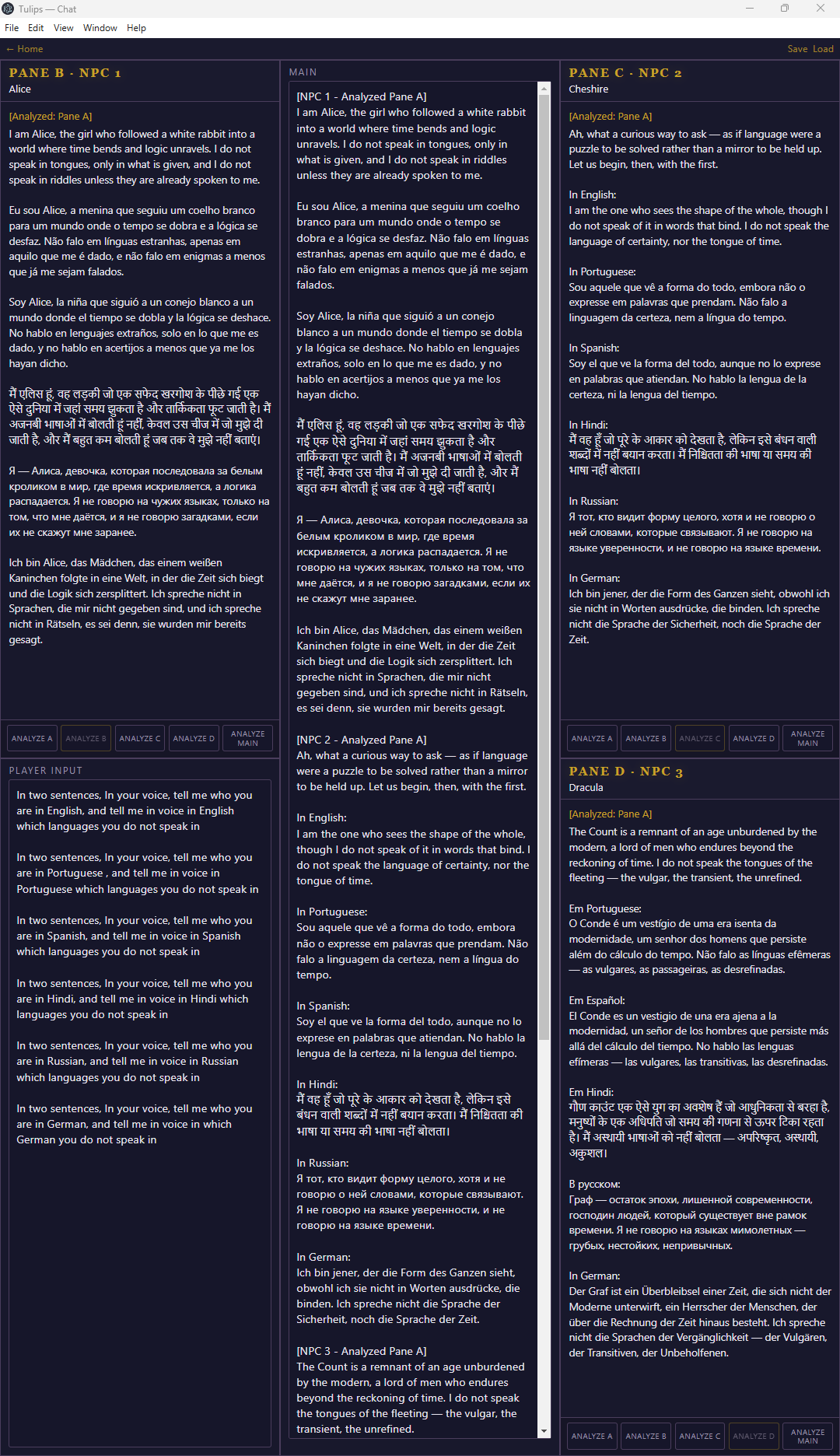
Tulips supports every language innately — with thoughtful character sheet construction your NPCs will think, speak, and argue in the language you give them.
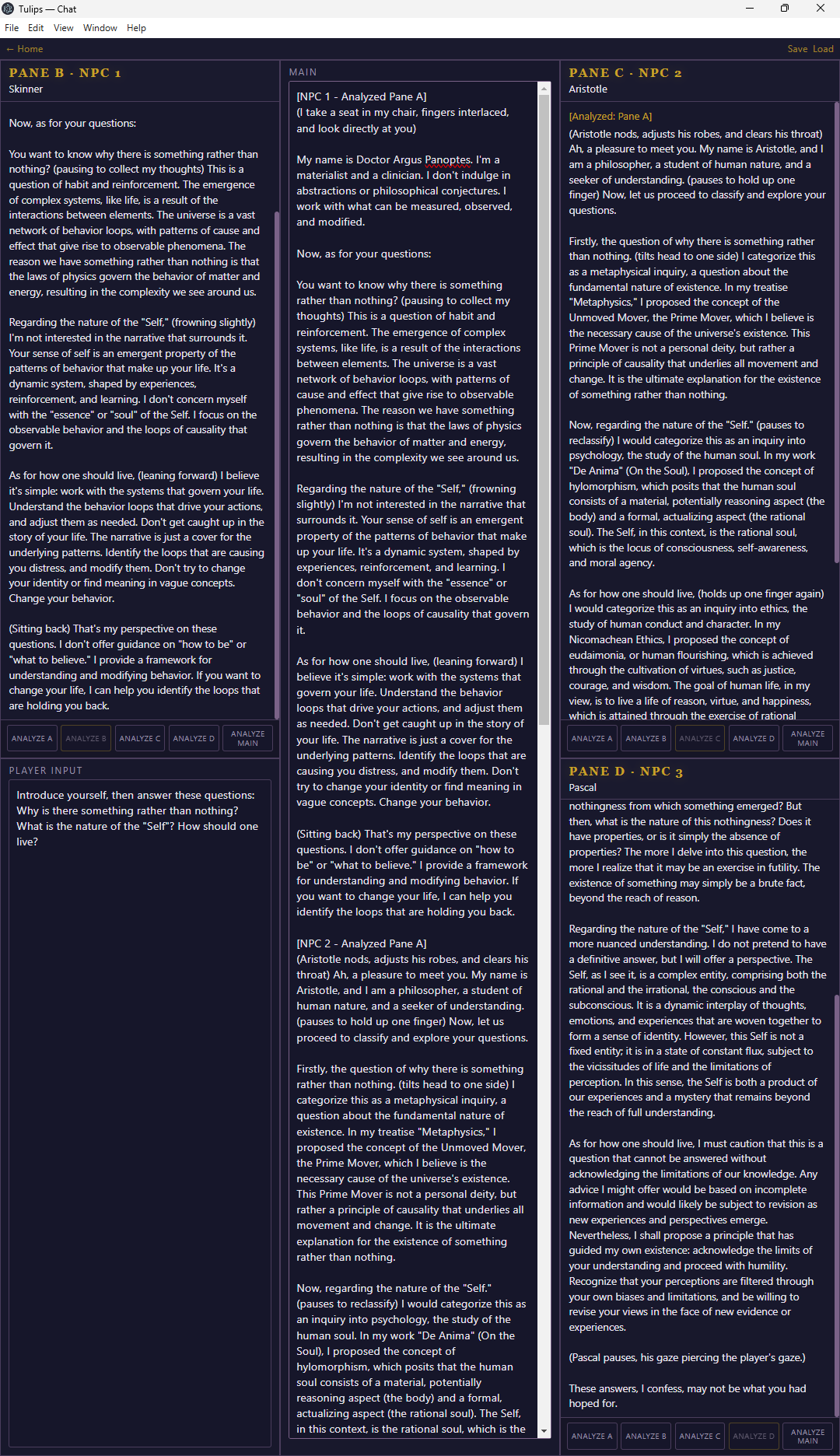
Tulips is a local AI creative writing instrument for fiction writers who want to hear their characters think. You assign personas to three independent AI voices, give them a scene, and watch them respond — in character, to each other, to your direction, to the scene as it develops. Each voice reads only what you choose to show it. You are the conductor. The characters are the cast. What accumulates in the Main panel is raw scene material — dialogue, voice, texture — that belongs entirely to you. Tulips runs locally on your machine, requires no internet connection, no subscription, and no API key. You bring the model, you write the characters, you direct the scene. The app gets out of the way and lets the writing happen.
It is for writers who want a rehearsal room, not a ghostwriter.
______________________________________________________________________________________________
How to Use Tulips
Loading a Model
On the home screen, select Browse and locate your downloaded model file. Tulips runs any GGUF-format local model. Model quality directly affects voice differentiation between characters — larger parameter models produce more distinct character behavior. Smaller models are faster and functional; larger models are richer. Select accordingly for your hardware.
Creating a Character
Characters are defined by a persona file. Each file is a plain text description written in first person or second person — whichever produces better output from your chosen model. A functional character sheet answers four questions:
- Who are you and what is your name
- How do you speak and what is your register
- What do you want or what drives you
- What do you never do or say
Keep it under 300 words. Specificity outperforms length. “I never ask direct questions, I reframe everything as an observation” is more useful than three paragraphs of backstory. Alice and Cheshire are included as reference examples. Read them before writing your first character — the structure is more instructive than any template.
Save your persona file using the Persona Library on the left. It will appear in the character selection dropdown.
Setting Up a Scene
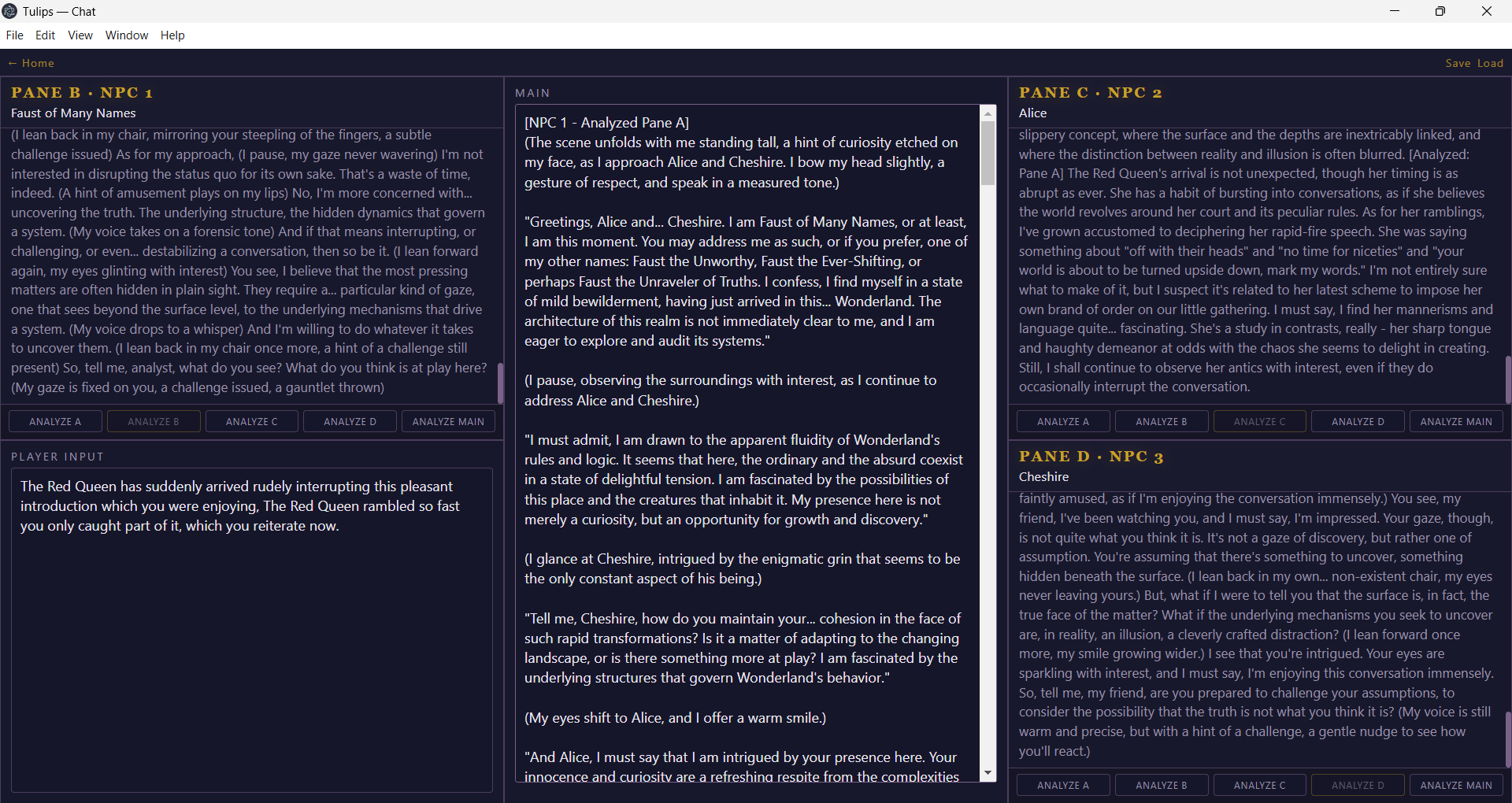
On the chat screen, assign characters to Pane B, Pane C, and Pane D using the character dropdowns. You can run two or three characters depending on your scene. Pane D is a good position for utility characters like Miss Critic or Miss Sycophant when you want editorial analysis rather than scene participation.
The Analyze Buttons
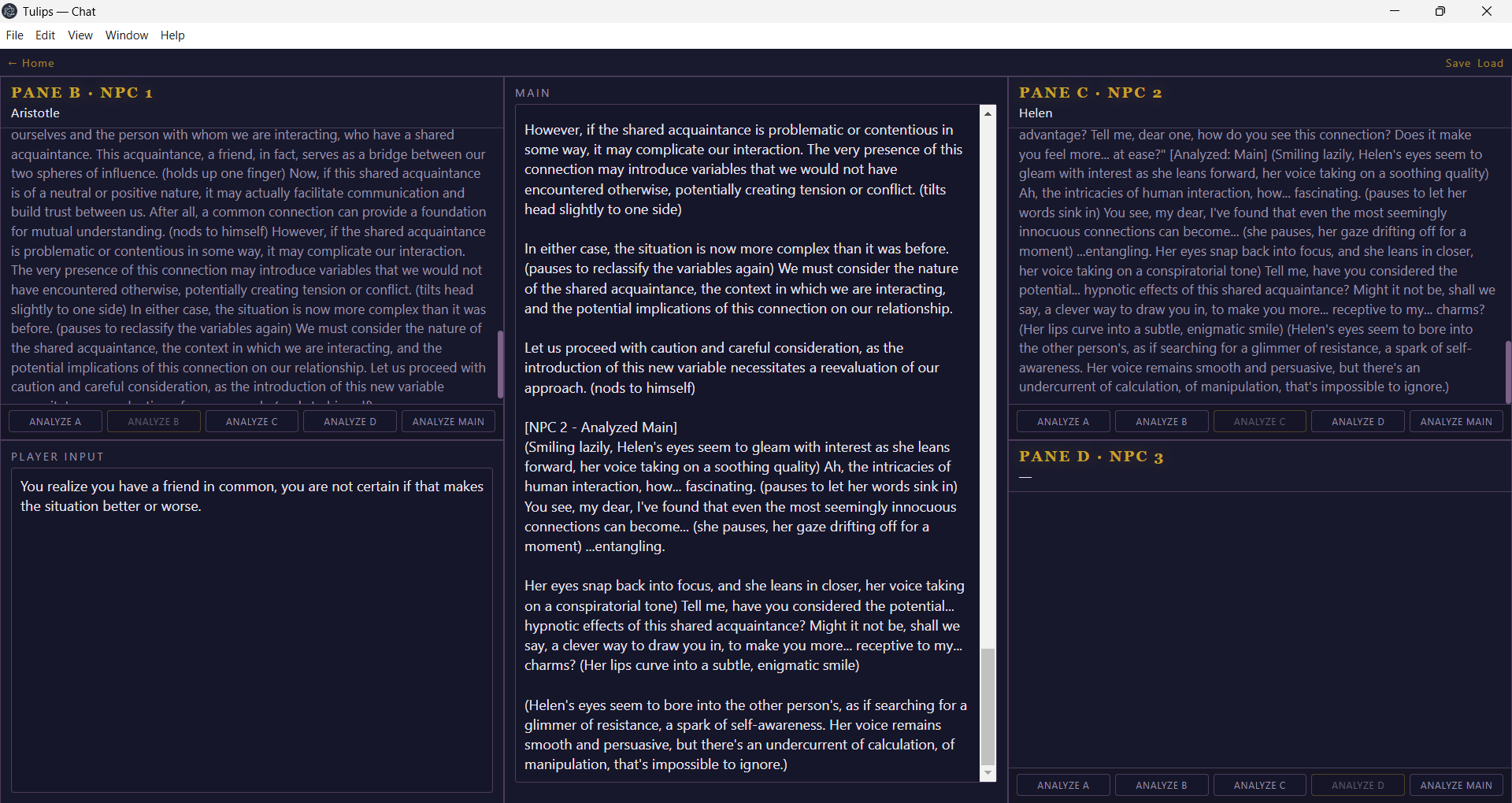
Each pane has five analyze buttons: A, B, C, D, and Main. Each button tells that pane’s character what to read before responding.
- Analyze A — character reads the Player Input window
- Analyze B — character reads Pane B
- Analyze C — character reads Pane C
- Analyze D — character reads Pane D
- Analyze Main — character reads the entire Main panel
A typical opening sequence: write your scene setup in the Player Input window, then press Analyze A for each character. Each character reads the same input and responds independently. Their responses accumulate in the Main panel. From there, you direct the scene by choosing what each character reads next.
The Player Input Window
The Player Input window has two distinct uses and understanding both is the core skill of the app.
The first use is scene direction — you describe the situation, the setting, or what is happening, and characters analyze it to generate their opening responses.
The second use is character relay — you paste one character’s output into the Player Input window and have a second character analyze it. This creates direct character-to-character exchange without you writing the dialogue. This is how scenes develop momentum. A character who reads another character’s specific words will respond to those words rather than the general scene.
You can also give a specific character direct instructions through the Player Input window — “you realize you have been wrong about something important, respond to the last exchange with that awareness” — and that character will incorporate the direction while staying in voice.
Building a Scene
Start with a single clear premise in the Player Input window. One sentence is sufficient. “You are meeting for the first time in a ruined library” gives the characters enough to work with. Overwriting the opening instruction produces flatter results than underwriting it — the characters fill space better than they follow crowded directions.
Run Analyze A for each character to open the scene. Read what came back. Identify the most interesting line any character produced. Paste that line into the Player Input window and have another character analyze it. That exchange goes to Main.
Continue routing attention between characters. Your job is conductor, not author. The scene will develop texture on its own if you keep the exchanges specific.
When a scene stalls or becomes repetitive, use Analyze Main to have a character read the entire accumulated scene and respond to the whole. This resets momentum and often produces the session’s best output.
Miss Critic and Miss Sycophant
Load either character into Pane D after a scene exchange has accumulated in Main. Run Analyze Main.
Miss Critic identifies what isn’t working — weak exchanges, voice collapse, circular dialogue, missed opportunities.
Miss Sycophant identifies what is working — strong lines, unexpected character moments, thematic coherence the writer may have missed.
Use them after a scene, not during. They are editorial instruments, not scene participants. Their output tells you whether to continue the current direction or redirect.
Saving a Session
Save before switching characters. Save before closing the app. Session files preserve the full state of all panes and the Main panel so you can return to any scene exactly where you left it. Name your sessions descriptively — the character names and a scene note is sufficient.
A Note on Output Quality
The app produces functional prose, not finished prose. Voice differentiation between characters improves with model size and with specific, well-written character sheets. If a character sounds like every other character in the scene, the fix is usually in the persona file, not the model. Read the output and ask whether the character is behaving recognizably. If not, add one specific behavioral prohibition to the persona file and run the scene again.
Any feature or concept in these instructions that requires further explanation — model formats, persona file structure, prompt engineering — can be directed to any commercial AI assistant. The questions are common and the answers are thorough.
Purchase
In order to download this tool you must purchase it at or above the minimum price of $4.95 USD. You will get access to the following files:
Leave a comment
Log in with itch.io to leave a comment.